
The dock that follows your work.
Dockscene takes the place of the macOS Dock. As you move from code to a call to the evening, it swaps in the apps and widgets for each, and tells you why it changed.
brew install --cask bogaculker/tap/dockscene
macOS 14 or later, Apple silicon and Intel. It keeps itself up to date.
A day with Dockscene · drag to move through it
Scenes
A scene is a set of apps and widgets, and a reason to show them.
Dockscene starts with six scenes built from the apps already on your Mac: Gaming, Meeting, Code, Design, Evening and General. Each one opens when its conditions hold:
- App in front
- App open
- Time range
- External display
- Battery or power
- Meeting in Calendar
- Mic or camera on
- The top scene wins.
- If two scenes match, the one higher in the list opens. If none do, the default scene shows.
- ⌘-Tab doesn't shake it.
- The context has to hold still for 0.8 seconds before the scene changes.
- Work scenes stick.
- Step from Code over to Finder and the Code scene stays for five minutes.
- You can take over.
- Swipe sideways on the dock or press ⌃⌥1–9. ⌃⌥0 hands it back.
- Scenes can set things up.
- Entering a scene can open apps, run a shortcut, open a link or run a command. Leaving it can hide or quit what you're done with.
In place of the Dock
It hides Apple's Dock, and puts it back when you quit.
Choose it when Dockscene first opens, or later in Settings, and it sits where the Dock was and behaves like it.
- Out of the way in full screen.
- Full-screen apps, games and videos push it off the screen, including on MacBooks with a camera notch.
- At home on every display.
- Rest the pointer on another display's bottom edge and the dock moves there, like the macOS Dock. A video full screen on one display leaves it alone on the others.
- Your choice when a window reaches it.
- It can stay in place, slide away, or stay hidden until the pointer touches the bottom edge.
- Zoomed windows stop above it.
- Double-click a title bar and the window ends just above Dockscene. Double-click again for the old size.
- Everything the Dock did.
- Open apps that aren't in the scene and the Trash line up at the end. Unread badges, window lists on right-click, drag to reorder, and dropping files on apps and the Trash all work.
Widgets
Widgets where you already look.
Widgets sit in the dock beside your apps, and each scene has its own. They take the colour of what they show: ten minutes before a meeting the calendar turns green and offers Join. Try them below: click one for its details, and turn the popover over for its size, layout and colour.
Click the tile
Drawn by Dockscene itself, with sample data. Also: Mic & Camera · Agents
Scripts
Any script can be a widget.
Save a file in the Widgets folder and name it for how often it should run. Whatever it prints becomes a tile: JSON for a title, value, symbol, colour, ring or list, or just two lines of text.
It runs only while its tile is on screen, and the tile updates the moment you save the file. Shell, Python, Ruby, Perl, Swift and JavaScript all work.
~/Library/Application Support/Dockscene/Widgets/disk.10m.sh
#!/bin/zsh
free=$(df -g / | awk 'NR==2 {print $4}')
printf '{"title":"Disk","value":"%s","unit":"GB free",
"symbol":"internaldrive","tint":"teal"}' "$free"The tile shows a drive symbol, 212 GB free, and the title Disk.
The small things
Handy when you need it, out of the way when you don't.
-
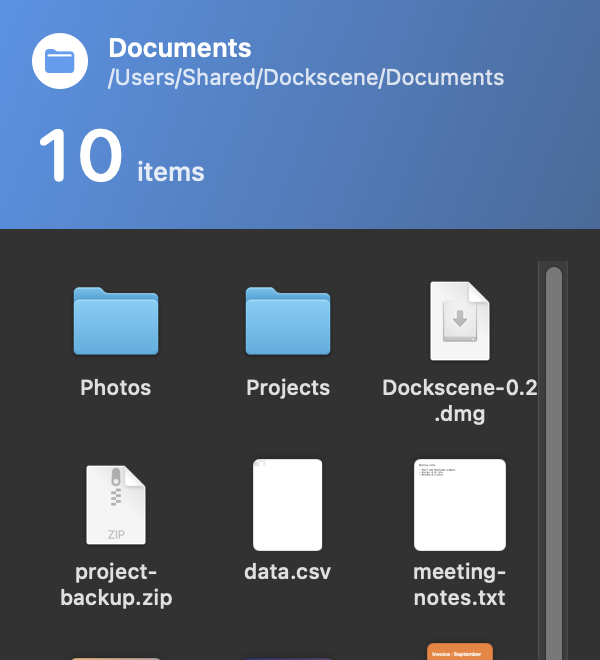
Folders and links
Drop a folder on the dock and it opens as a grid or a list, newest first. A link keeps its own site's icon.
-
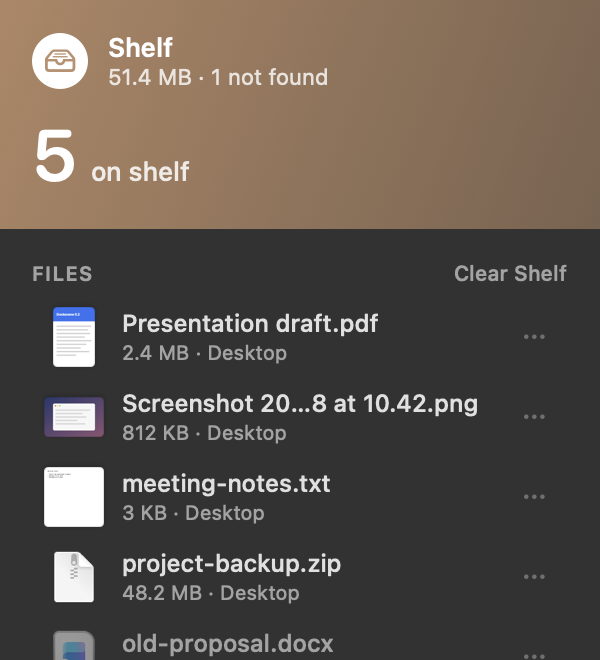
A shelf for files
Park files on a tile while you work. They stay where they are on disk; drag them out, share them or AirDrop them.
-
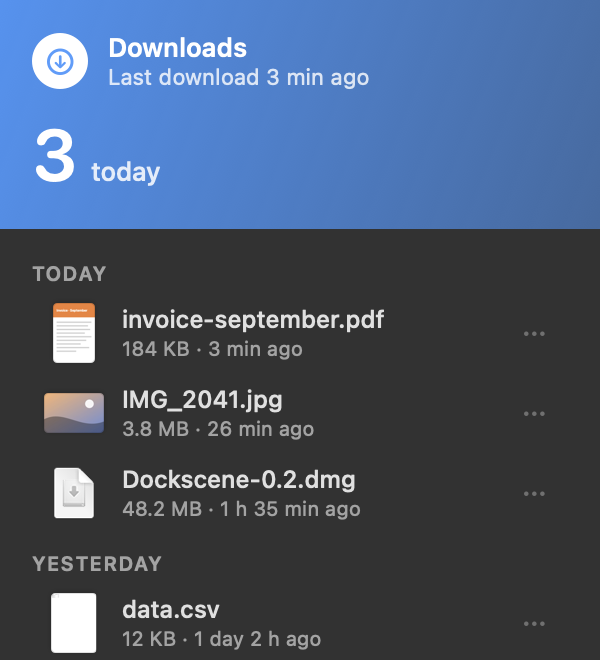
Downloads, as they land
A finished download shows up on the dock for a moment. Half-finished ones stay out of sight, and your files are never touched.
-
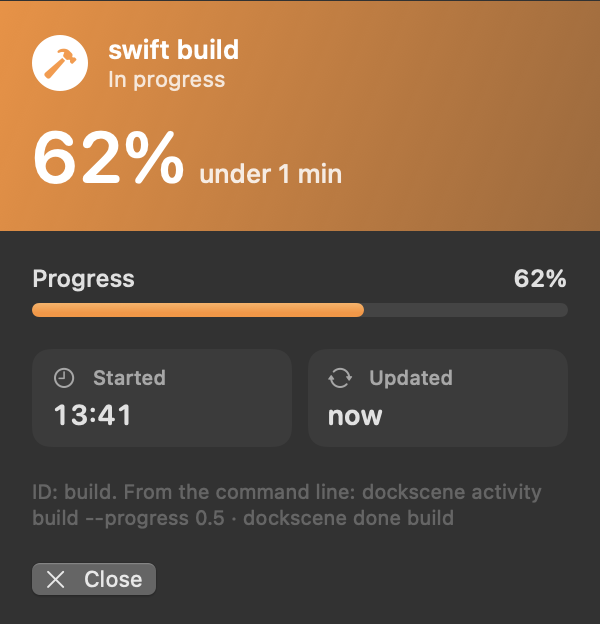
Progress on the dock
Put
dockscene runin front of a command and it gets a live box on the dock that shows how long it took and how it ended. Backups and scripts can report their progress too. -
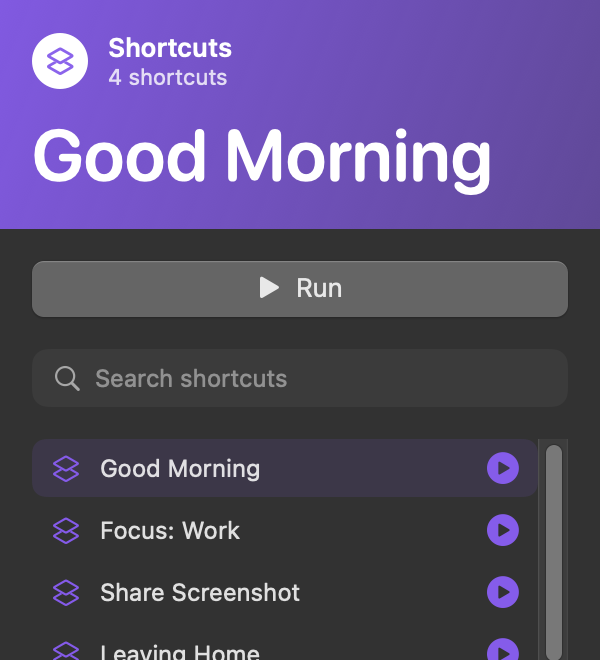
Shortcuts, one click away
Pin a shortcut from the Shortcuts app to a tile and run it from the dock. The popover lists the rest, with search.
-
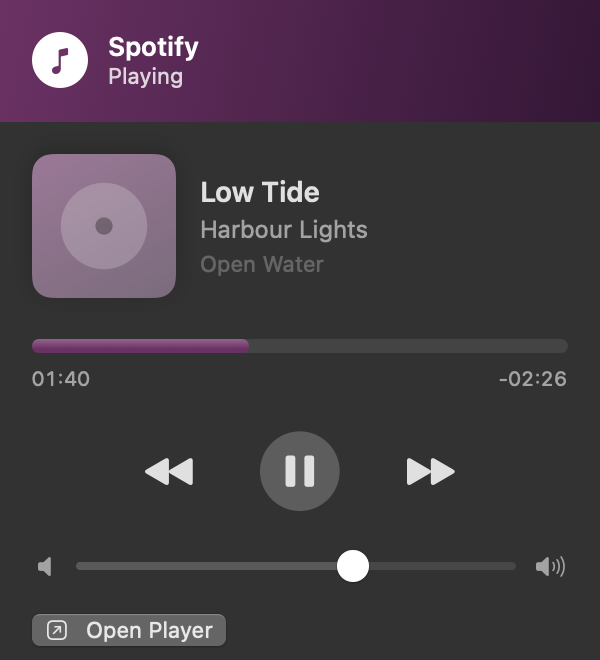
Music without switching apps
Now Playing takes the colours of the album. Scrub, skip and change the volume from the dock, for Spotify and Music.
Energy and privacy
Quiet on your battery, and on the network.
Stops when you can't see it
Widgets off screen don't run, and neither does anything while the dock is hidden. The clock wakes every five seconds unless you ask for seconds. Downloads and Reminders wait to be told something changed.
Shows its own cost
The Energy pane lists Dockscene's CPU time and memory, and how many times each source ran and for how long.
No account, no tracking
Weather comes from MET Norway; calendar, reminders and battery come from macOS. Dockscene doesn't collect data about how you use it.
Questions
Before you ask.
How do I set it up?
Drag it to Applications and open it, or install it with Homebrew: brew install --cask bogaculker/tap/dockscene. A short welcome then shows the scenes it built from your apps, asks whether it should take the Dock's place, and offers the two permissions that make it better. Everything else can wait for Settings.
Which permissions does it ask for?
Only the ones for features you use, when you first use them:
- Accessibility to end zoomed windows above the dock, show app badges and spot full screen on displays with a camera notch.
- Calendar and Reminders for those widgets and the Meeting scene.
- Downloads folder for the Downloads widget. It reads names, sizes and dates only.
- Automation to play and pause Spotify or Music, and to empty the Trash through Finder.
- Notifications for the focus timer, countdowns and alarms.
It never asks for Screen Recording. Knowing which app is using the mic or camera needs no permission, and no audio is read.
What happens to Apple's Dock?
Replacing it is a setting. When you turn it on, Dockscene sets Apple's Dock to hide and restarts it once. Turn the setting off or quit Dockscene and your old Dock settings come back.
With the setting off, Dockscene sits just above Apple's Dock, or at the top of the screen if you prefer.
What if Dockscene quits unexpectedly?
Apple's Dock stays hidden until Dockscene opens again; quit it from the menu bar and the Dock comes back. You can also bring it back yourself: press ⌥⌘D, or run this in Terminal:
defaults write com.apple.dock autohide -bool false; defaults delete com.apple.dock autohide-delay; killall DockIs it free?
Yes, while it's in public beta. Dockscene will become a paid app later; the beta is how it gets there, so reports of anything that goes wrong are the most useful thing you can send.
How does it update?
Once a day it looks for a new version, and when there is one the dock tells you; you choose when to install it. You can turn the daily check off, or check yourself, in Settings › General. Updates are signed, so only ones made by Dockscene are installed.
How do I remove it?
Quit Dockscene from the menu bar, which brings Apple's Dock back, then move Dockscene to the Trash. Your scenes and settings stay in ~/Library/Application Support/Dockscene; delete that folder too if you won't need them again.
Something went wrong. Where do I tell you?
Choose Report a Problem… in Dockscene's menu bar menu, or use the problem report form. No account needed; leave an email if you'd like an answer.
Do I need an account?
No. There's no sign-in, and your scenes, widgets and scripts stay in one folder on your Mac: ~/Library/Application Support/Dockscene. Copy that folder to take your setup to another Mac.
What does it connect to?
Weather comes from MET Norway for the city you choose, and city search uses Apple Maps. Now Playing asks Spotify's public service for album art. A link on the dock fetches its site's icon once. Once a day it asks this site whether there is a new version, and updates download from GitHub. Your scripts reach whatever you write them to. Dockscene sends no usage data anywhere.
Which Macs does it run on?
macOS 14 Sonoma or later. Liquid Glass appears on macOS 26 and later.
With more than one display, Dockscene starts on the one with the menu bar and follows the pointer to the others, like the macOS Dock. It can also stay on the main display.
Which languages?
English and Turkish. Dockscene follows your Mac's language, and you can pick one in Settings › General.
Try the public beta.
Dockscene is free while it's in beta, and it updates itself. If something goes wrong, tell us: that's how the beta gets better.
brew install --cask bogaculker/tap/dockscene
macOS 14 Sonoma or later, Apple silicon and Intel. Liquid Glass on macOS 26 and later.